Back to All Topics

Base Positioning and Provisioning

Find the best spot for the base device, and connect your RodentRadar device to your home or business Wi-Fi network. Best practice is to place the base device in it's permanent location.

~10 minutes 7 steps

Before your RodentRadar device can begin monitoring, it needs to connect to your home or business Wi-Fi network. This guide will walk you through the simple provisioning process using your smartphone.

1

Unpack and Connect Power

~1 min

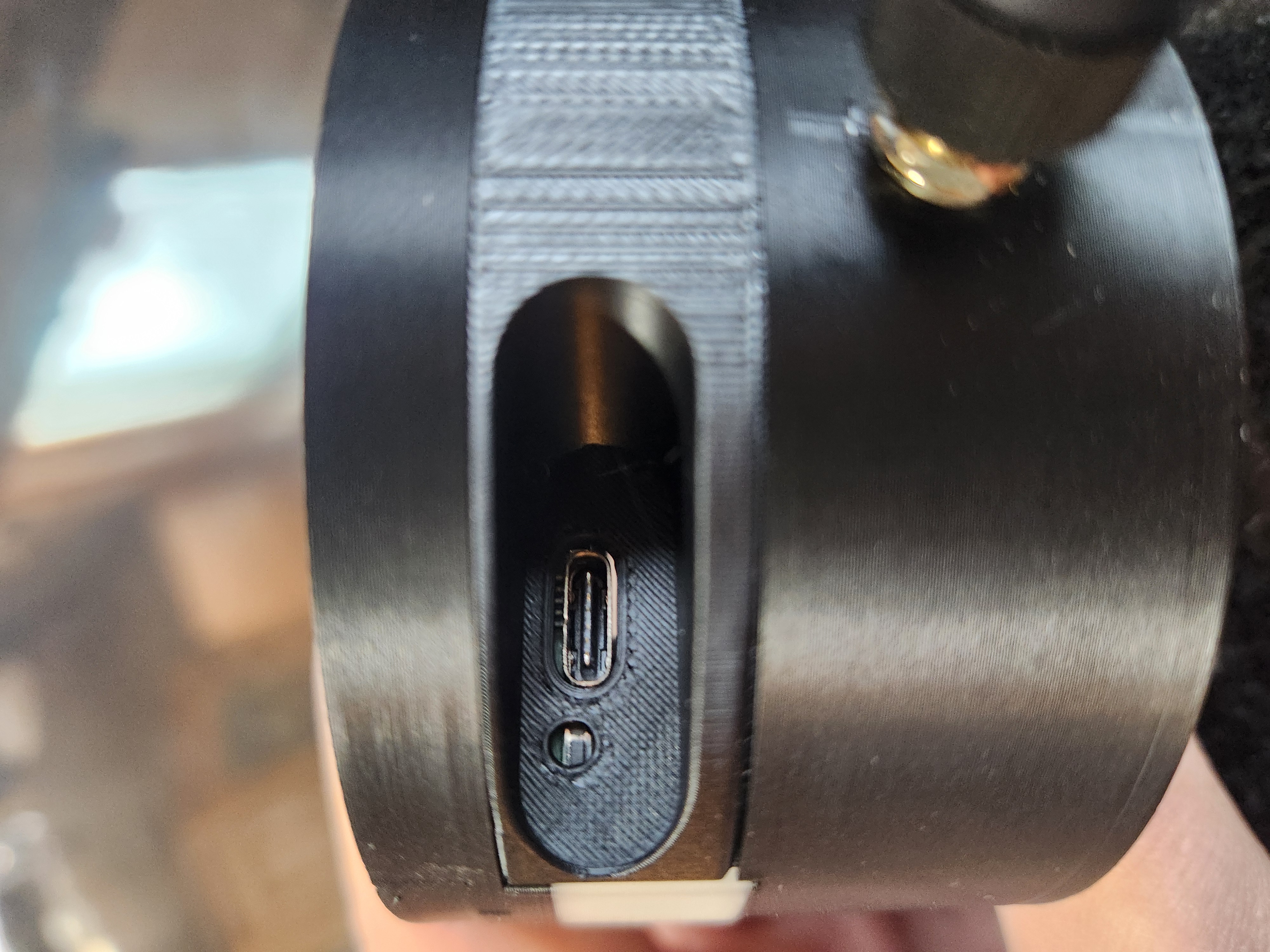
Unpack your Rodent Radar base station and locate the USB power port on the back of the device. Connect the included USB cable to the port and plug it into a USB power adapter or any available USB port.
Tip: Use a USB adapter that provides at least 1A of power for reliable operation.
USB power port on back of device

USB power port on back of device

2

Find the Best Location for the base device

~2 min
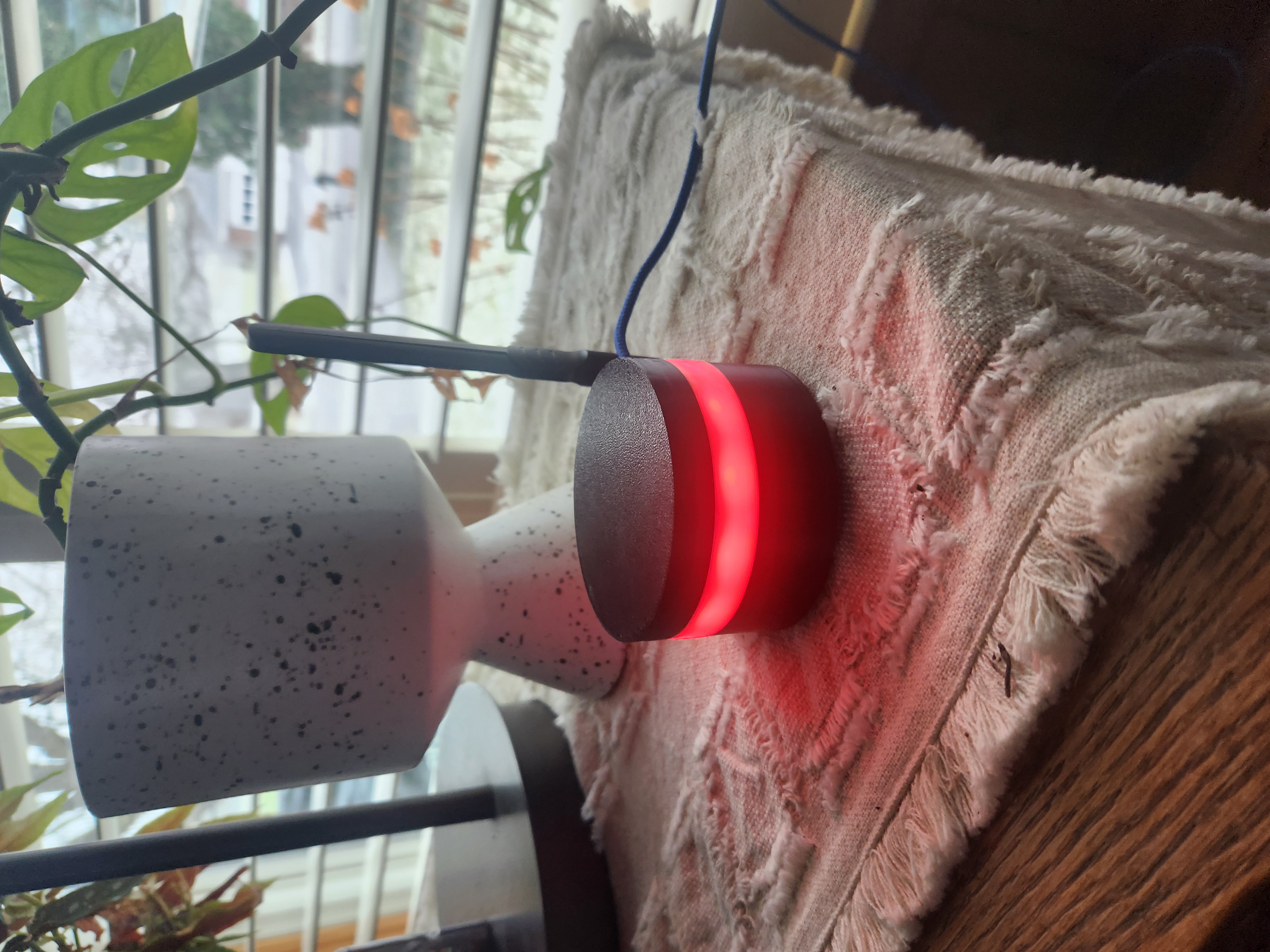
Device with red lights flashing

Device with red lights flashing

Position your Rodent Radar base station in a central location where it can communicate with all your sensors. Ideally, place it roughly halfway between your WiFi router and where your sensors will be located.
The base station should be:
• Near a power outlet (USB power required)
• Within range of your WiFi router
• Elevated if possible (shelf or counter height)
• Away from large metal objects that could interfere with signals
Once you've found a good spot, try to leave the base station in place. Avoid moving it frequently or repeatedly turning the power on and off — the system works best when the base stays powered on continuously so it can maintain a reliable connection with your sensors.
When first powered on, the device will flash red lights indicating it is ready to be provisioned. This means it is waiting to connect to your WiFi network so it can send data to the cloud.
Tip: The red flashing lights indicate the device is in provisioning mode and ready to connect to your network.
3

Open Wi-Fi Settings on Your Phone

~2 min
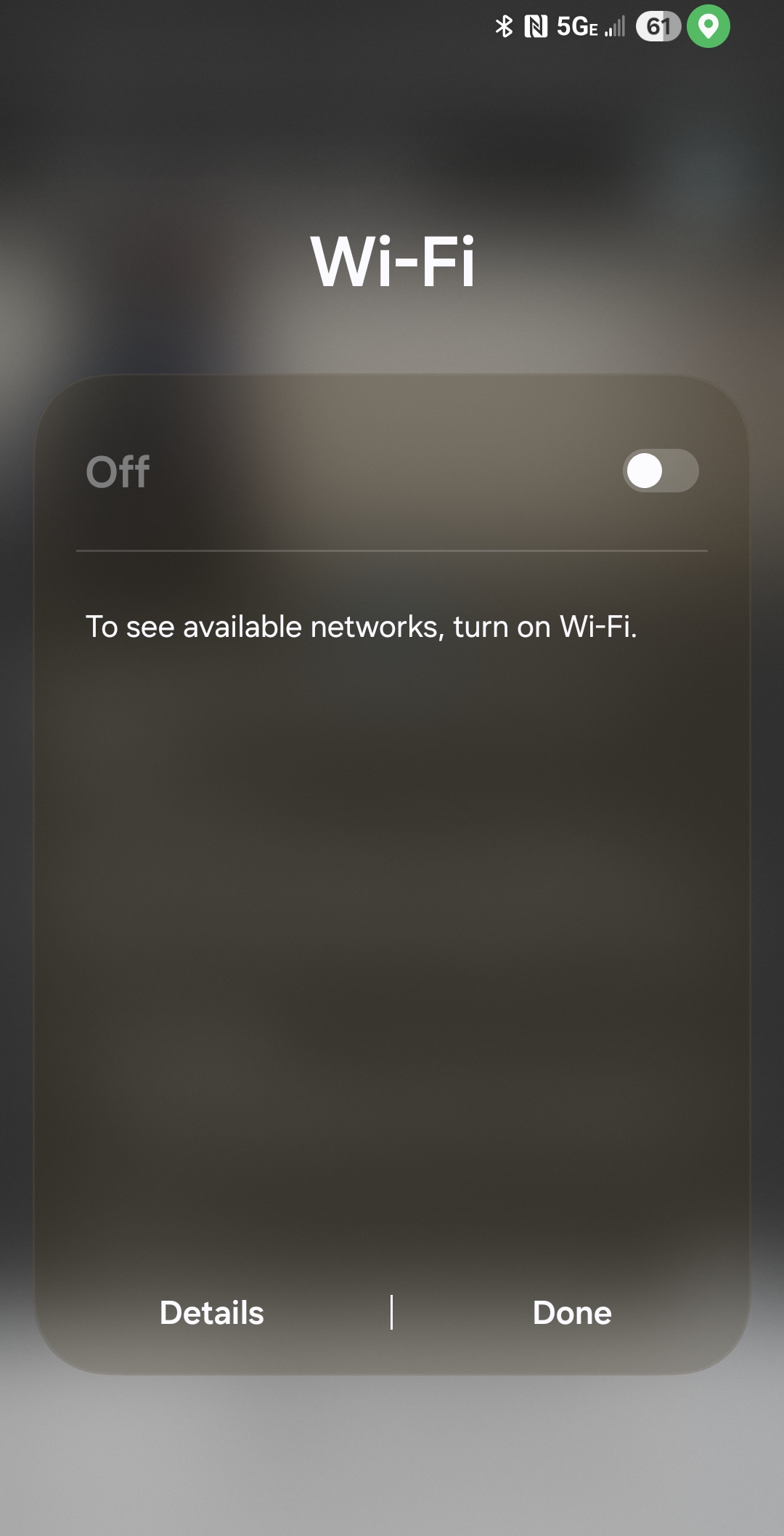
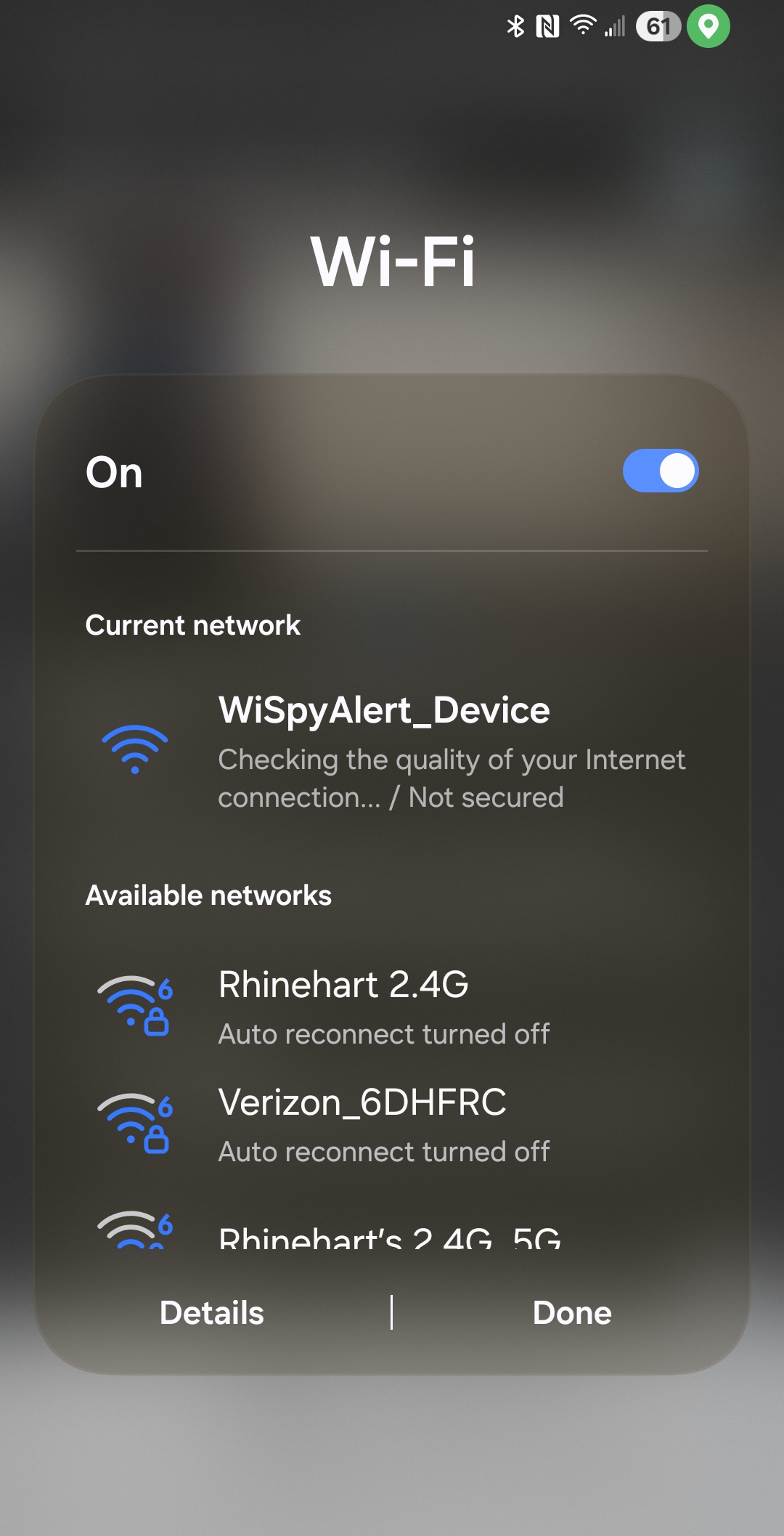
Start by opening the Wi-Fi settings on your smartphone. If Wi-Fi is currently turned off, you'll see a message prompting you to enable it. Make sure Wi-Fi is turned ON so you can see available networks.
Tip: If you're currently connected to your home Wi-Fi, you may need to temporarily disconnect to see the Rodent Radar device network.
Enable Wi-Fi on phone

Enable Wi-Fi on phone

4

Connect to RodentRadar_Device

~2 min

Select RodentRadar_Device network

Select RodentRadar_Device network

Once Wi-Fi is enabled, look through the list of available networks. You should see a network named "RodentRadar_Device" appear in the list.

Tap on RodentRadar_Device to connect to it. This is a temporary connection that allows your phone to communicate directly with the Rodent Radar base station.
Tip: The RodentRadar_Device network doesn't require a password. If you don't see it, make sure your device is powered on and wait a few moments.
5

Open the Provisioning Page

~2 min

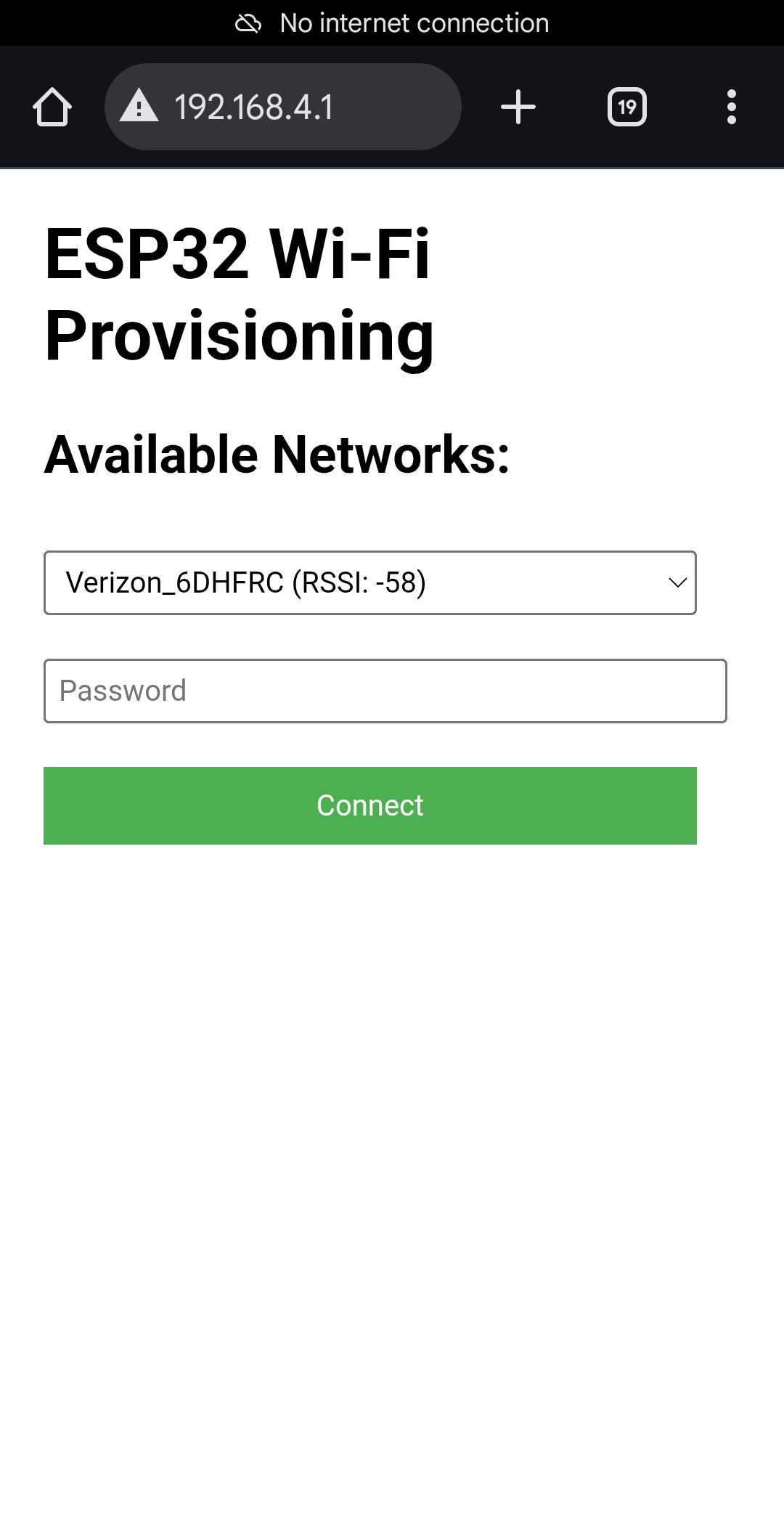
Once connected to the RodentRadar_Device network, open a web browser on your phone (Safari, Chrome, etc.) and navigate to:

http://192.168.4.1

This address connects you directly to the Rodent Radar base station's built-in configuration page.
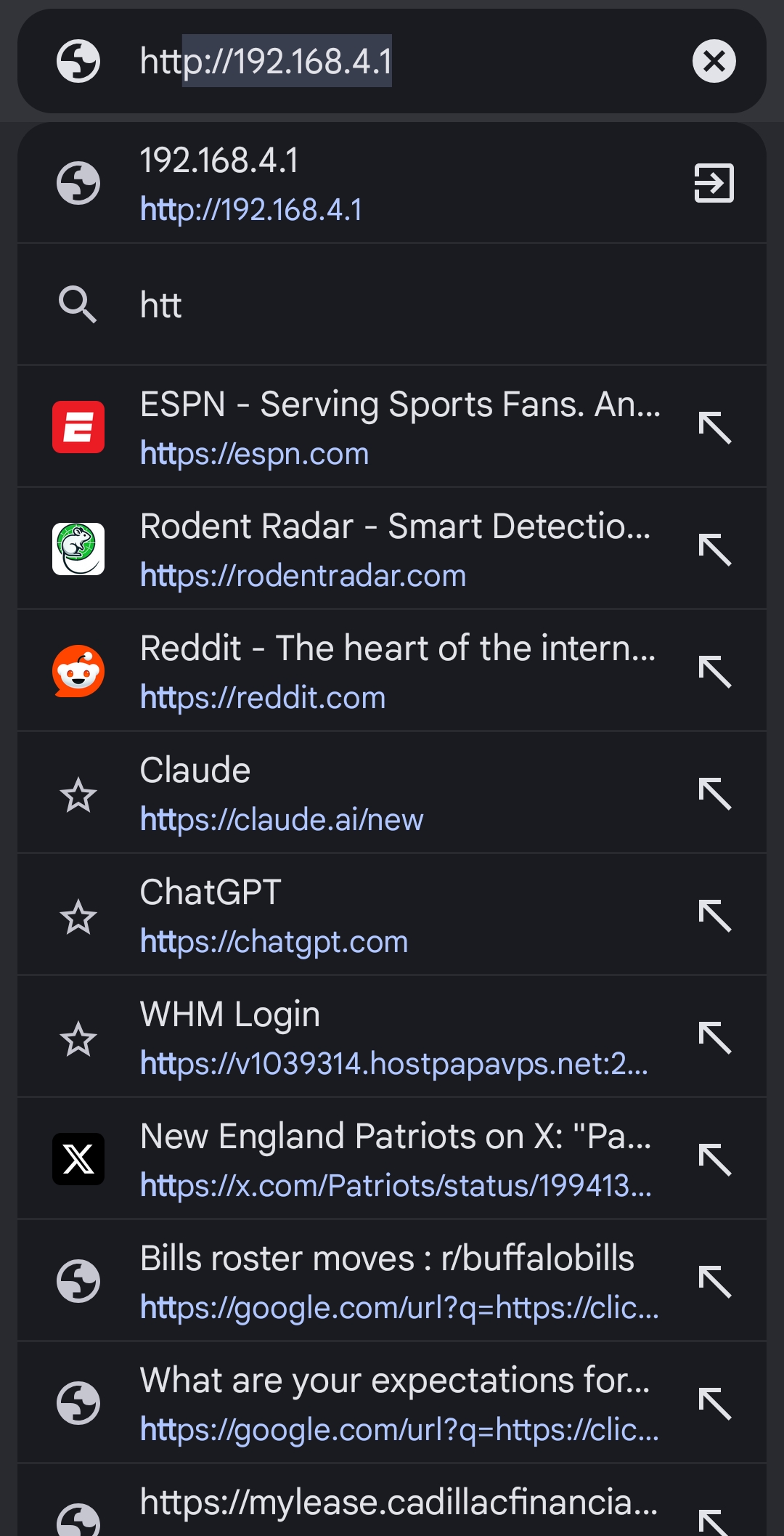
Tip: Your phone may warn that there's no internet connection on this network. That's expected! Choose to stay connected when prompted.
Navigate to 192.168.4.1

Navigate to 192.168.4.1

6

Select Your Home Network

~2 min

Select network and enter password

Select network and enter password

The ESP32 Wi-Fi Provisioning page will appear. You'll see a dropdown menu showing all available Wi-Fi networks that the Rodent Radar base station can detect.

Select your home Wi-Fi network from the dropdown. If your router broadcasts both 2.4GHz and 5GHz networks, choose the 2.4GHz network (often labeled with "2G" or without "5G" in the name).

Enter your Wi-Fi password in the text box, then tap the Submit or Connect button.
Tip: Rodent Radar devices work best on 2.4GHz networks. 5GHz networks have shorter range and may not reach all areas of your property.
7

Provisioning Complete!

~2 min

When you see the success screen, your Rodent Radar base station has successfully connected to your home Wi-Fi network. The device will now restart and begin communicating with the cloud.

What happens next:
• Your phone will automatically disconnect from the RodentRadar_Device network
• Reconnect your phone to your normal home Wi-Fi network
• Your Rodent Radar base station will appear as online in your dashboard
• You can now proceed to pair your motion sensors
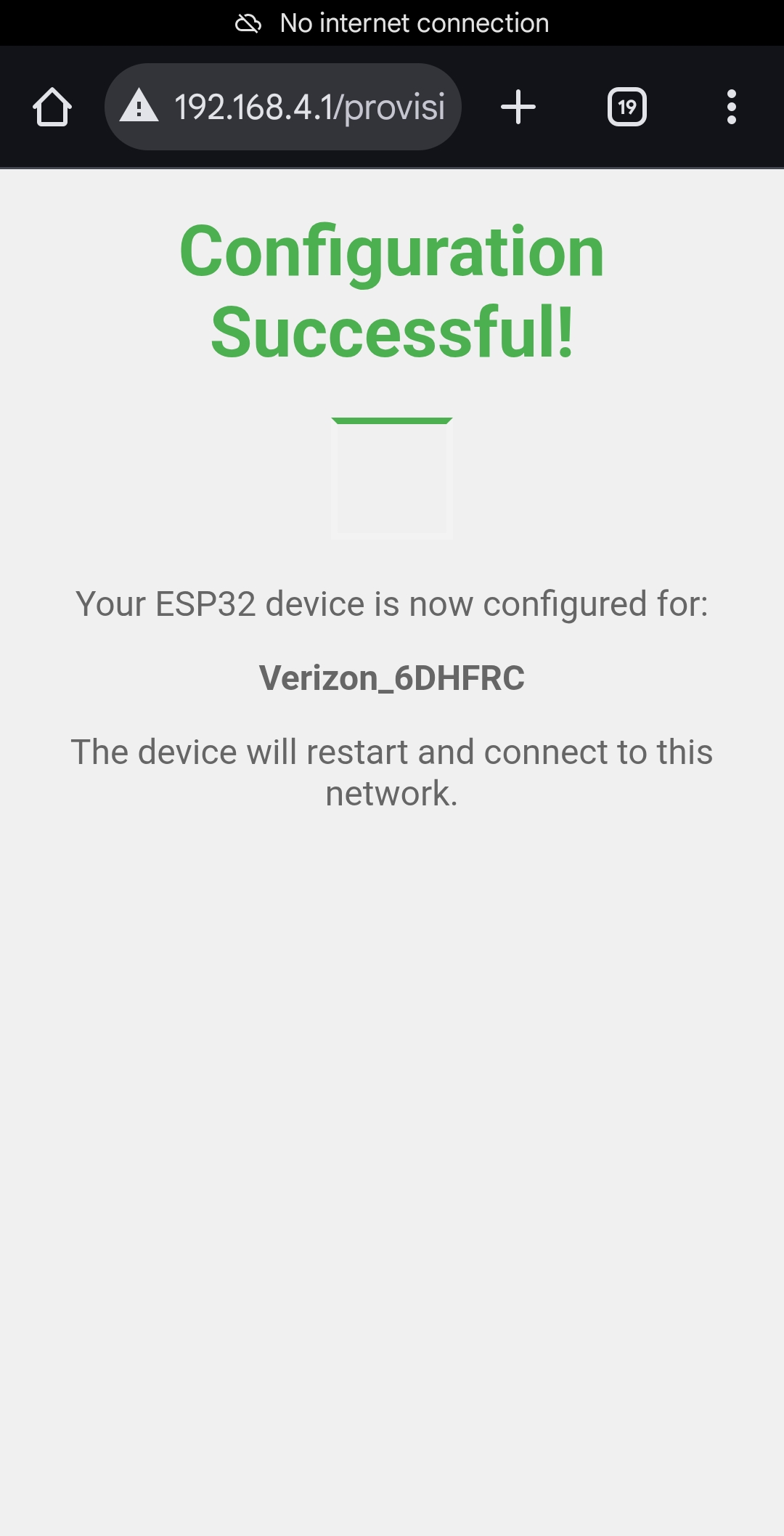
Provisioning success

Provisioning success

Next: Sensor Placement