Back to All Topics

Wake Up Your Sensors

Your sensors ship asleep to preserve battery — here's how to wake them up

~5 minutes 5 steps

RodentRadar sensors are shipped in a deep sleep mode to preserve battery life during transit. Before they can detect anything, each sensor needs to be woken up with a quick magnet swipe. This guide explains what to expect and walks you through the process.

1

Why Sensors Ship Asleep

~1 min

Your RodentRadar sensors are shipped in a deep sleep mode called "shipping sleep." This preserves the battery so your sensors arrive fully charged and ready for months of monitoring.

In shipping sleep, the sensor uses almost zero power — it's essentially hibernating. The only thing that can wake it up is a magnet swipe across the hall effect sensor on the board.
Tip: Shipping sleep is different from the normal sleep the sensor uses between motion checks. In shipping sleep, ONLY a magnet can wake it — not motion, not a timer, nothing else.
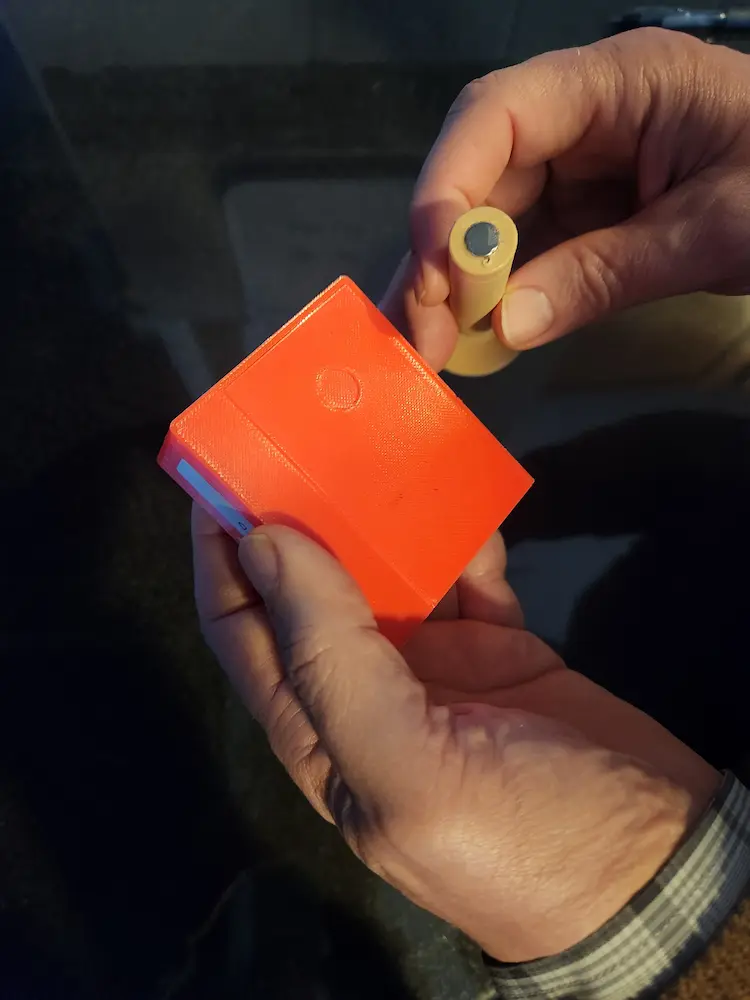
Showing the magnet, the small round disk.

Showing the magnet, the small round disk.

2

What You'll Need

~1 min

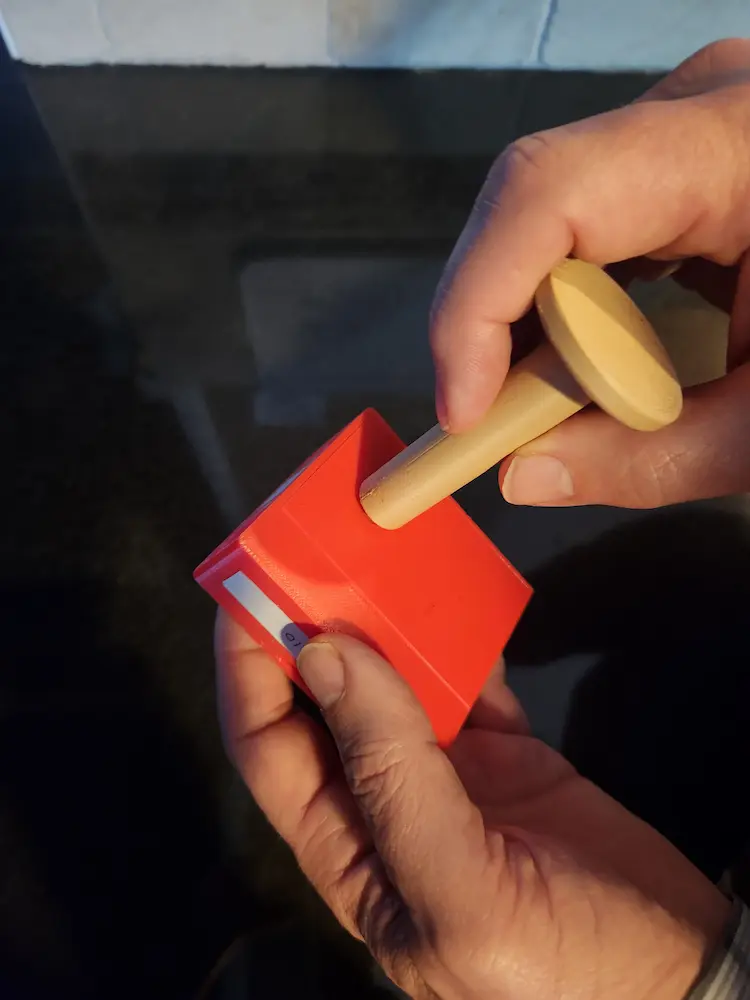
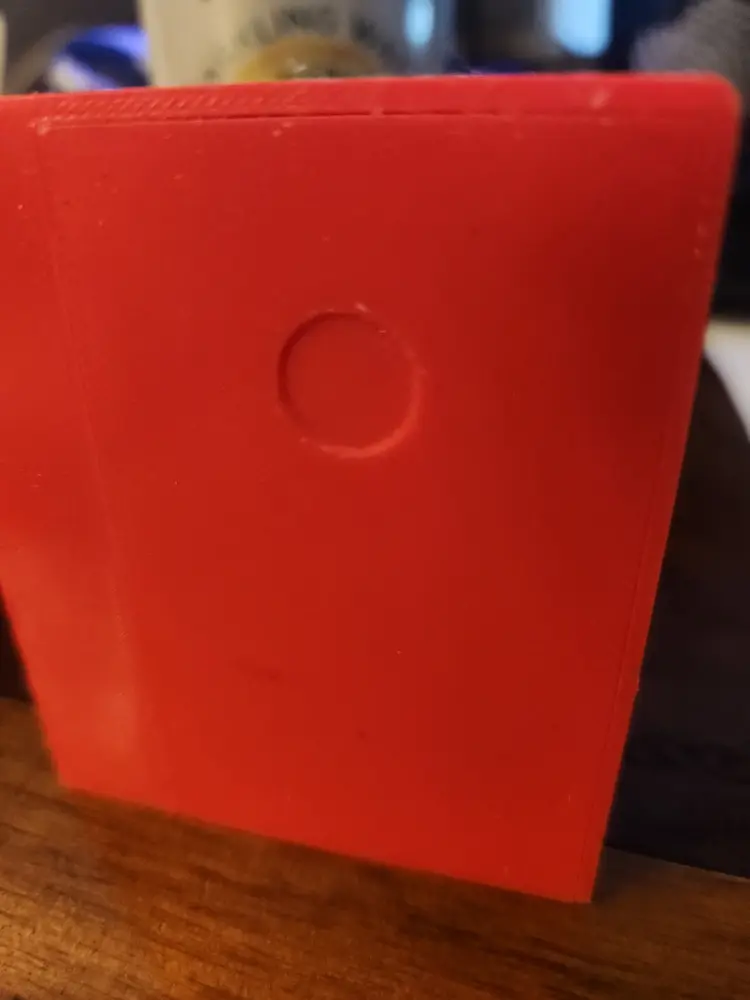
You'll see a round indent on the back of the sensor case.  Briefly place the magnet near or in that round area.

You'll see a round indent on the back of the sensor case. Briefly place the magnet near or in that round area.

Each sensor kit includes a small magnet. This is the same magnet you'll use to wake up each sensor.

You'll also want to have your RodentRadar dashboard open on your phone or computer so you can watch each sensor come online as you activate it.
Tip: Keep the magnet somewhere safe after setup — you can use it later to put sensors back to sleep for storage or transport.
3

Locate the Hall Effect Sensor

~1 min

On each sensor board, there's a small component called a hall effect sensor. This is what detects the magnet and triggers the wake-up.

The hall effect sensor is located near the edge of the board. Look for the small component marked on the board — your kit includes a diagram showing its exact position.
Tip: The hall effect sensor detects magnetic fields, not physical contact. You don't need to touch the magnet to the board — just get it close.
The small round indent is where you will want to place the magnet.

The small round indent is where you will want to place the magnet.

4

Swipe the Magnet

~1 min

Swipe the Magnet
Hold the magnet and swipe it across the hall effect sensor area in a smooth motion. You don't need to press hard or hold it in place — a quick swipe within about half an inch of the sensor is all it takes.

After the magnet swipe, the sensor will wake up from shipping sleep and begin searching for its base station. If your base station is powered on and connected to WiFi, the sensor should appear on your dashboard within about 30 seconds.
Tip: If the sensor doesn't wake up on the first try, swipe again a little slower. Make sure you're swiping over the correct area of the board.
5

Confirm on Dashboard

~2 min

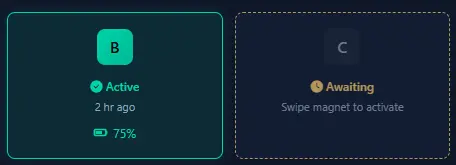
As each sensor wakes up and connects to the base station, you'll see it appear on your dashboard. The sensor card will change from "Awaiting" to "Active" and show its battery level.

Repeat the magnet swipe for each sensor in your kit. The dashboard updates automatically — no need to refresh the page.

Once all sensors show as active, you're ready to move on to placing them.

Tip: On the dashboard, you'll see the devices change from 'awaiting' to 'active' as you can them.
Confirm on Dashboard
Next: Sensor Placement